
For security and compliance reasons, our Customer Support team cannot access your leave policies or employee details. To resolve your enquiry as quickly as possible, we need you to share the details we use for troubleshooting, such as your Annual Leave policy or leave balances.
Please send the whole settings page, from top to bottom, in one image. Having everything at once saves rounds of back-and-forth, which we know takes up your time. Printing the page as a PDF often cuts it off or leaves gaps, so please use a full-page screenshot instead. The steps below take about 2 minutes, and they work for any altHR page, such as Leave Balances.
You can use any tool that captures a full web page. This guide shows GoFullPage for Chrome as one example. Microsoft Edge has a built-in option that needs no install (see Tips). GoFullPage is a third-party tool, not part of altHR (see Disclaimer).
Steps
Use Google Chrome on a computer. Steps 1 and 2 are a one-time setup.
Step 1: Install GoFullPage
You can use any tool that captures a full web page. This guide shows GoFullPage for Chrome as one example. Microsoft Edge has a built-in option that needs no install (see Tips). GoFullPage is a third-party tool, not part of altHR (see Disclaimer).
- Open chromewebstore.google.com and search for GoFullPage.
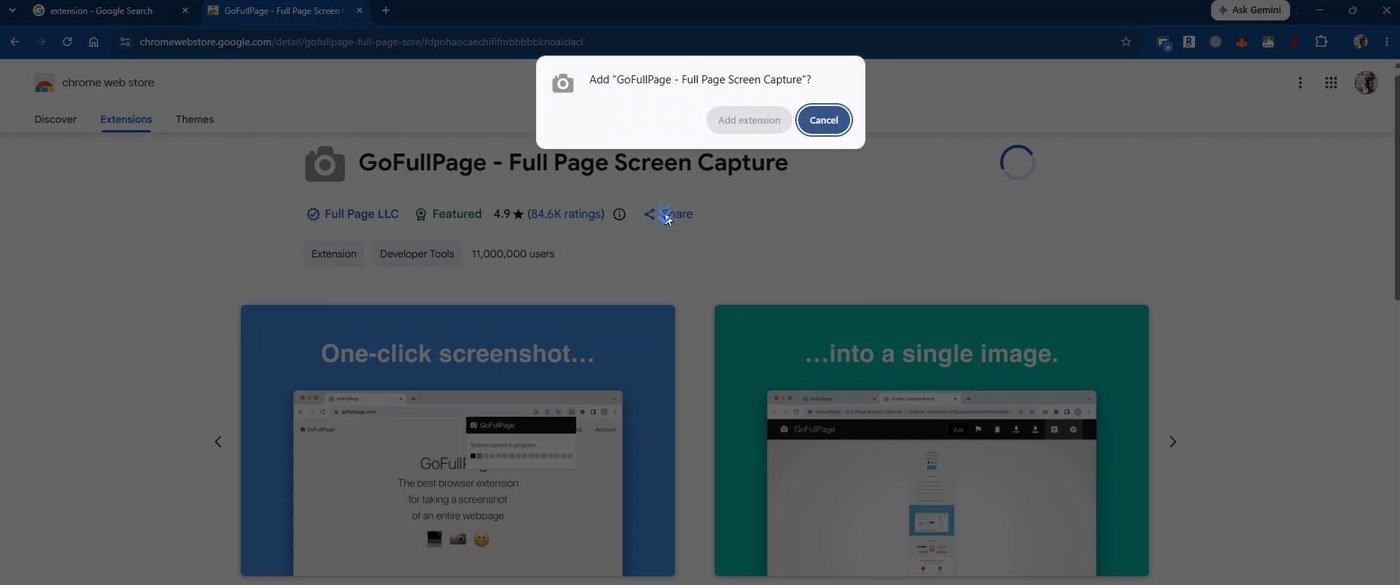
- Open GoFullPage - Full Page Screen Capture (publisher: Full Page LLC, camera icon).
- Click Add to Chrome, then click Add extension in the pop-up.
Step 2: Pin it to your toolbar
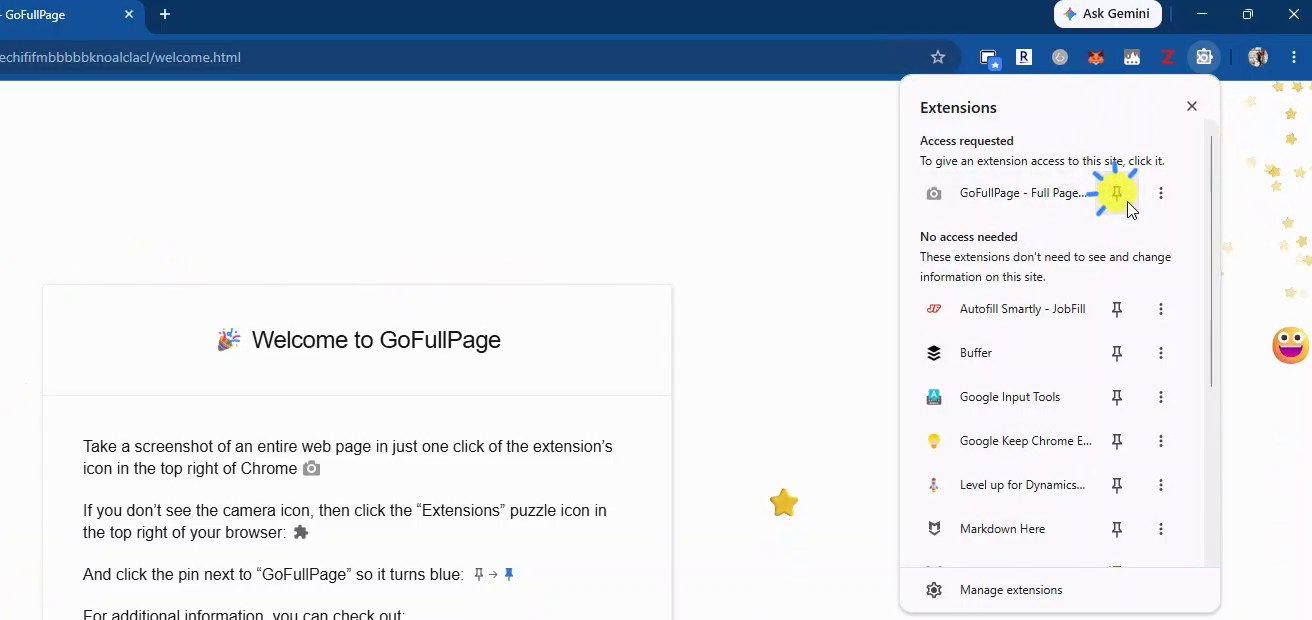
- Click the puzzle-piece icon (Extensions) at the top right of Chrome.
- Click the pin next to GoFullPage so it turns blue.
- A camera icon now shows in your toolbar.
Step 3: Open the leave policy in altHR
- Log in to the altHR admin portal at admin.althr.my.
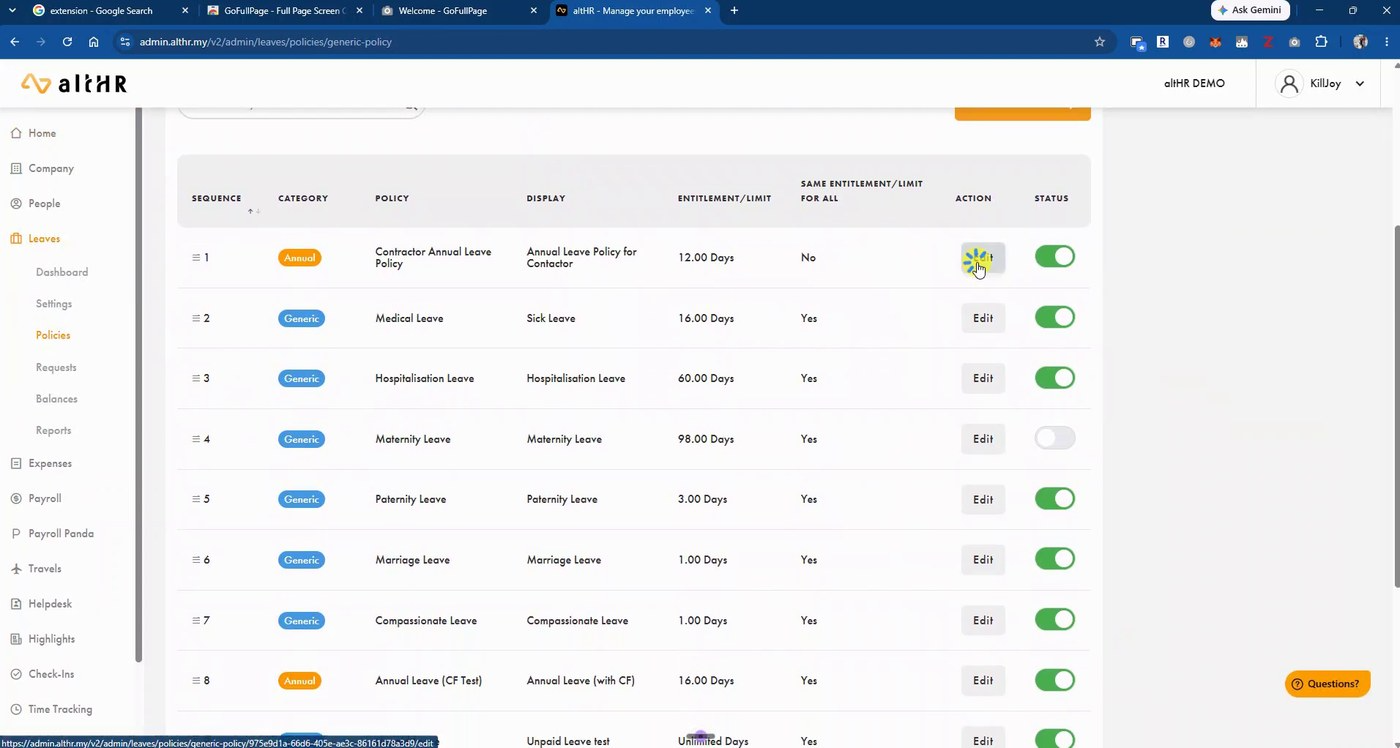
- Go to Leaves > Policies.
- Click Edit on the policy we asked about. You don't need to change or save anything.
- Under 1. Policy, click Show Advanced Settings so that Leave Time Settings is visible. Screenshot tools only capture what is shown on the page, so a collapsed section will be missing from the image.
Step 4: Capture the whole page
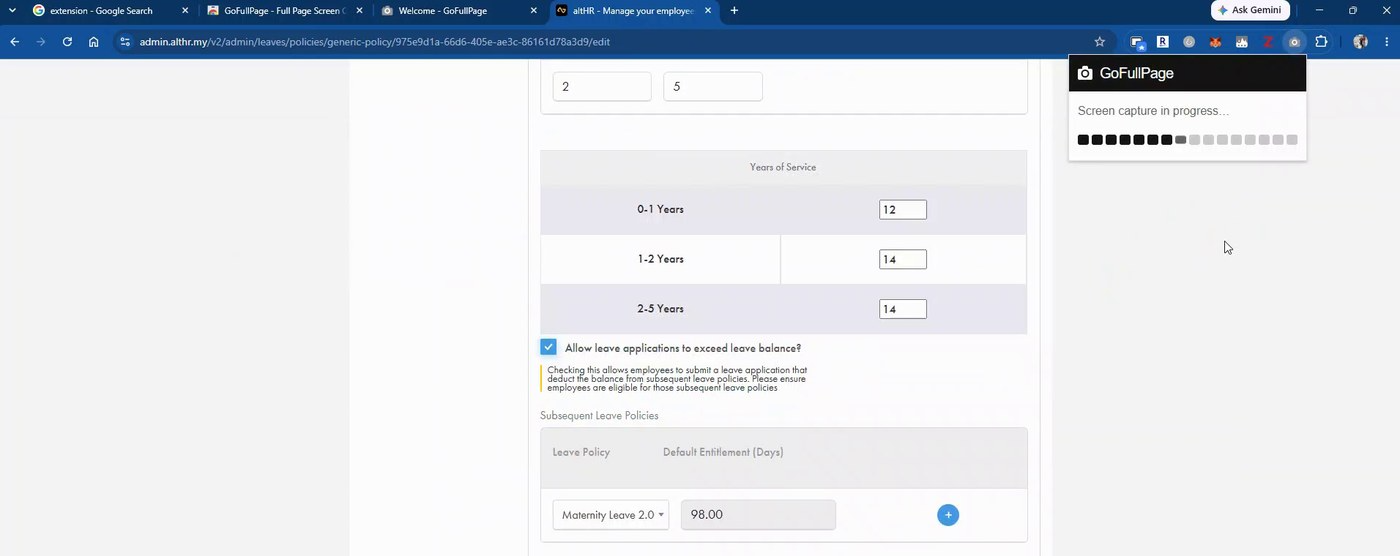
- Click the camera icon in the toolbar.
- Wait for the progress bar to finish. It scrolls the page for you, so don't scroll or click while it runs.
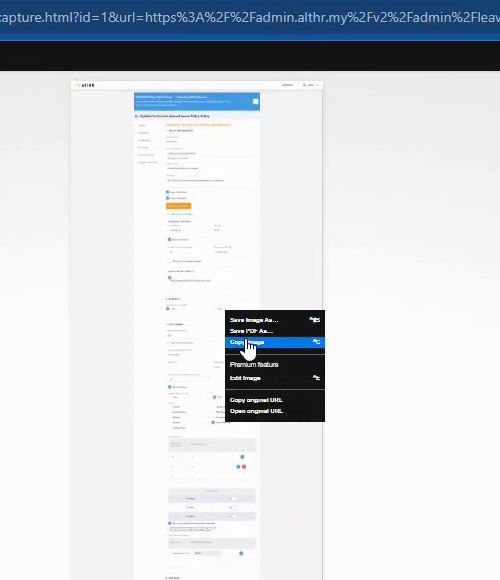
- A new tab opens with the full-page capture.
Step 5: Send it to us
- Right-click the capture and choose Copy Image.
- Paste it (Ctrl+V) into your reply to our email or ticket, then send.
- Or choose Save Image As... to save a PNG file, then attach it to your reply.
Tips and troubleshooting
Problem | Fix |
|---|---|
Advanced Settings or Leave Time Settings missing from the image | Click Show Advanced Settings (Step 3), then capture again. |
No camera icon in the toolbar | Click the puzzle-piece icon and pin GoFullPage (Step 2). |
Capture stops halfway or looks cut off | Close any pop-ups on the page, scroll back to the top, and click the camera icon again. |
Several policies to send | Repeat Steps 3 to 5 for each policy and paste each image into the same reply. |
Image too small to read when pasted | Use Save Image As... and attach the PNG instead. The file keeps full resolution. |
Can't install extensions on your computer | Open the policy in Microsoft Edge, press Ctrl+Shift+S and choose Capture full page. Or tell us and we'll arrange a short screen-share. |
Stuck on any step? Reply to our email or write to support@althr.my and we'll help.
Disclaimer
GoFullPage and any other screenshot tools named in this guide are third-party products. They are not developed, owned or supported by altHR. altHR is not responsible for their features, availability, security or how they handle data.
We mention them only as examples. You may use any tool that captures the full page, in line with your company's IT policies. Please check a tool's permissions and privacy policy before you install it. For help with the tool itself, contact its developer.